
Inviting Employees
How to invite employees to log in via a one-click sign-in link, and why this is the recommended path
The invite flow is the recommended way to onboard an employee onto Hopshift. It produces a clean, fully-linked account in one click, and avoids the orphan states that can occur when employees try to sign in on their own without their record being prepared.
Don't tell employees to "go to hopshift.app and log in." Send an invite. The invite link does the matching for you and guarantees they land in the right workspace. Self-signup works, but it depends on the employee entering the exact email already on their employee record: any drift creates a manual cleanup task.
Prerequisites
Before inviting, the employee record must already exist:
- Employee row exists in the right company. See Adding an Employee.
Emailfield is set to the address the employee will actually use. This is the address the sign-in link is sent to and the address the login account is created for.
The invite goes to the Email on the employee record. Check it before sending: a typo creates a login that is not linked to the employee.
If the employee changes their email later, see Changing an Employee's Email below.
How to invite
Bulk invite (recommended for onboarding multiple employees)
- Go to Workforce > Employees.
- Tick the checkbox next to each employee you want to invite.
- Click Send Invites (N) in the header. It appears once you have selected at least one row, next to Assign access level (N), and the count matches your selection.
- Confirm in the Send Invite Emails dialog ("Send invite emails to N selected employees? They will receive a login link.").
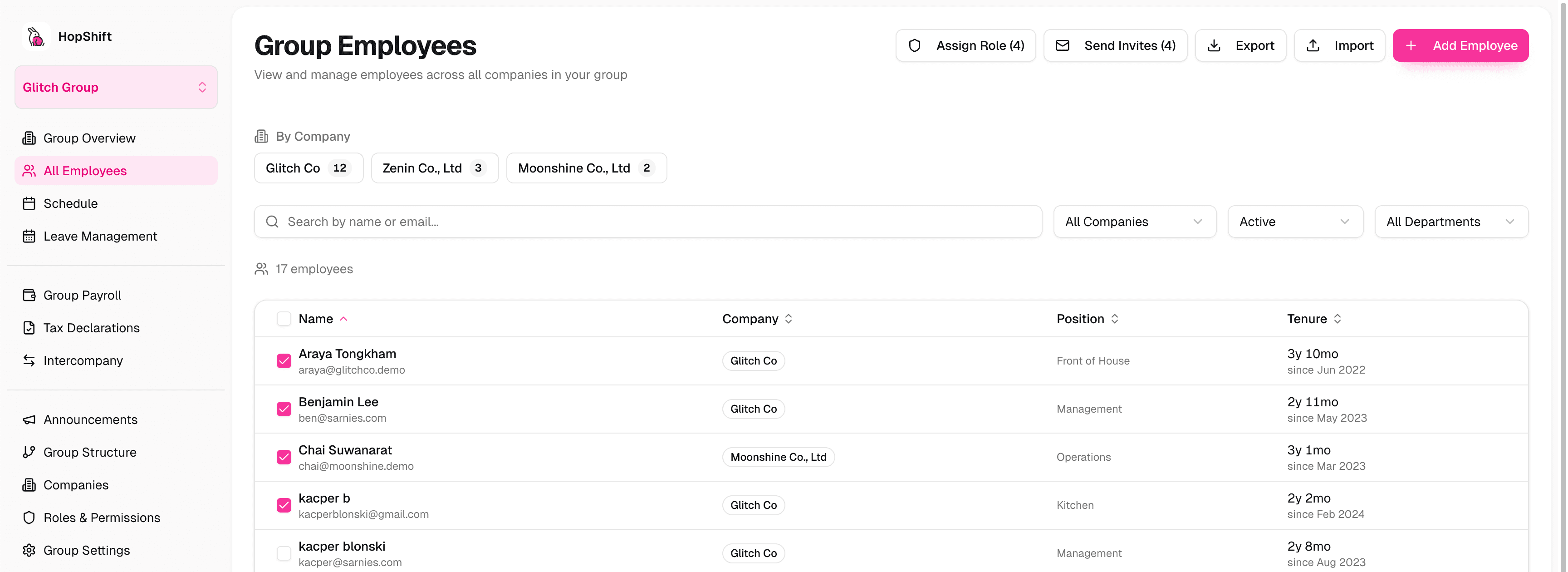
Sign-in links are sent in one batch and each employee is marked as invited.
Single invite (one employee at a time)
- Open the employee's profile (Workforce > Employees, click the employee). You land on the Overview page.
- In the Access card, the Account line reads No login for someone who has never signed in. Click Invite next to it.
The email is sent immediately (there is no confirmation step) and a toast confirms "Invitation sent". Once the person has signed in, the card shows Active login and the Invite button disappears. The button is disabled for terminated employees.
Terminated employees cannot be invited. Reactivate the record first (see Terminating an Employee), then invite.
What the employee receives
A branded Hopshift email with:
- A short greeting addressed to the employee by name
- The company name they've been invited to
- A single button: Sign In to {company} for a new user, or Sign In to HopShift if they already have an account elsewhere in Hopshift
The link is one-time-use and expires. If the employee doesn't click it in time, just send a new invite; the previous link is superseded.
What happens when they click
Behind the scenes, the click sets up the whole account:
- The link verifies the employee's email.
- A user account is created (if it didn't already exist).
- The account is linked to the employee record by email.
- Company and group access are set up for the invited company.
- The employee is redirected to their workspace, signed in.
The whole chain happens in under a second. Employees see only "loading" then their home screen. No password, no signup form.
Troubleshooting
"The link has expired"
Send a new invite; the old one is invalidated by the new one.
Employee doesn't see the email
Check the spam folder first. If still missing, verify the email on the employee record is spelled correctly and re-invite.
Employee already has a Hopshift account at another company
That's fine. The invite recognizes the existing account, adds them to your company, and sends a "You've been added to {company}" email instead of a "Welcome" email. They sign in as usual and the new company appears in their company switcher.
Employee says they "logged in but don't see anything"
Usually one of:
- They self-signed-up with a different email than the one on their employee record and created a parallel orphan account. Compare the address they signed in with against the Email on their profile. If they differ, reach out to engineering (an hourly reconciliation job surfaces these).
- Their employee record is at a different company than they expect. Check Company on their profile.
Changing an Employee's Email
Edit the Email field on the employee profile and save. Future invites will go to the new address. If they've already signed in under the old email, their existing access is preserved (the link is by user account, not by email, so changing the field doesn't break anything).
Re-inviting a terminated employee
Not allowed. The invite flow refuses to send a link to a terminated employee. To restore access, first reactivate the employee record (or rehire them), then invite as normal.
Why this is preferred over self-signup
| Invite flow | Self-signup | |
|---|---|---|
| Account is correctly linked at sign-in? | Always: the employee record is matched at the moment the invite is generated | Only if the employee enters the exact email on their record. Typos, capital letters, missing dots, or an alternate address all create orphans. |
| Membership and group access are set up? | Yes, immediately on click | Not always. If something goes wrong, the user lands in an empty workspace. |
| Recoverable from a typo? | Just re-invite. Nothing else changes. | Engineering has to manually reconcile the login against employee records. |
| HR has visibility? | Yes: the employee is marked as invited, and the Access card shows No login / Active login. | No: until the employee actually logs in successfully, there's no signal. |
For bulk onboarding, use the import flow (see Importing Employees), which offers Send invite emails too at the end of the import.