
Terminating an Employee
How to process an employee termination, handle final payroll, and maintain compliance records
Terminating an employee in Hopshift removes them from schedules and future payroll runs while preserving their full historical record for audit and legal purposes. This guide covers the termination steps, what happens to their data, how to handle final pay, and how to manage rehires.
Before You Terminate
Check the following before marking an employee as terminated:
- Approve or cancel any pending leave requests. Any request still pending at the moment you confirm is rejected automatically.
- Ensure the final payroll run is ready. If the termination falls mid-cycle, the employee's salary is prorated in that run and you add final pay items yourself (see below).
- Keep any outstanding documents (resignation letter, final settlement agreement) in your own records. Hopshift can generate a termination letter for you as part of the dialog.
How to Terminate an Employee
Step 1: Open the Employee Profile
Go to Employees and find the employee. Click their name to open the profile.
Step 2: Open the Termination Page
In the employee profile left navigation, under the Status group, click Termination.
The Employment Status page shows the current status and the Terminate Employee button (or Deactivate Employee for a temporary deactivation).
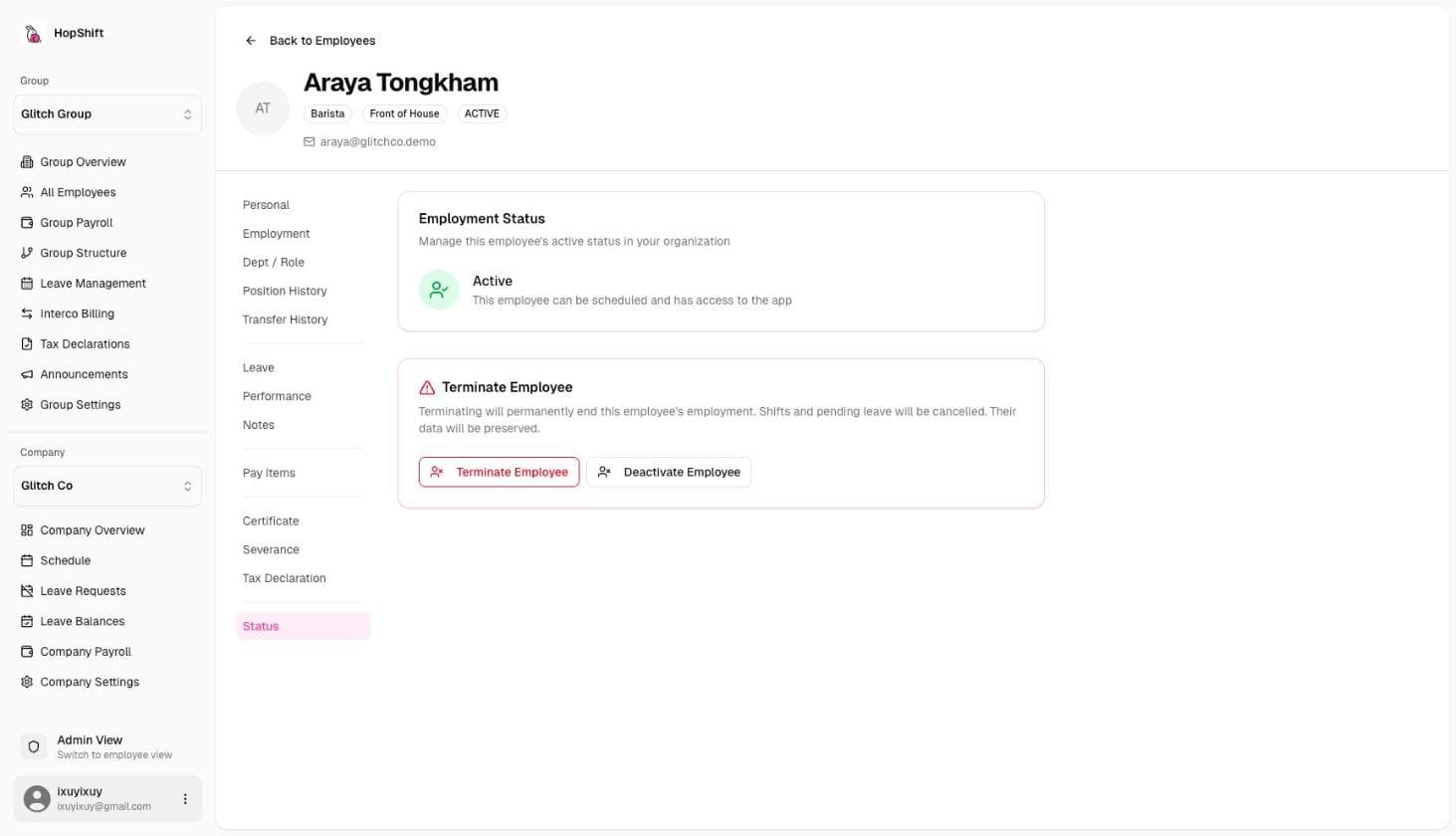
Step 3: Click Terminate Employee and Fill in Details
Click Terminate Employee. A dialog opens. Fill in:
| Field | Required | Notes |
|---|---|---|
| Last Working Day | Yes | The employee's final day. This is the only field that must be filled before you can confirm. |
| Reason for Termination | No | Voluntary resignation, End of contract, Performance issues, Layoff / Reduction in force, Misconduct, No call / No show, Seasonal / Temporary end, or Other |
| Additional Notes | No | Stored in the record. Not shown to the employee. |
| Would you rehire this employee? | No | Recorded for future reference. |
| Generate termination letter PDF | No | Tick to have Hopshift prepare a termination letter you can download afterwards. |
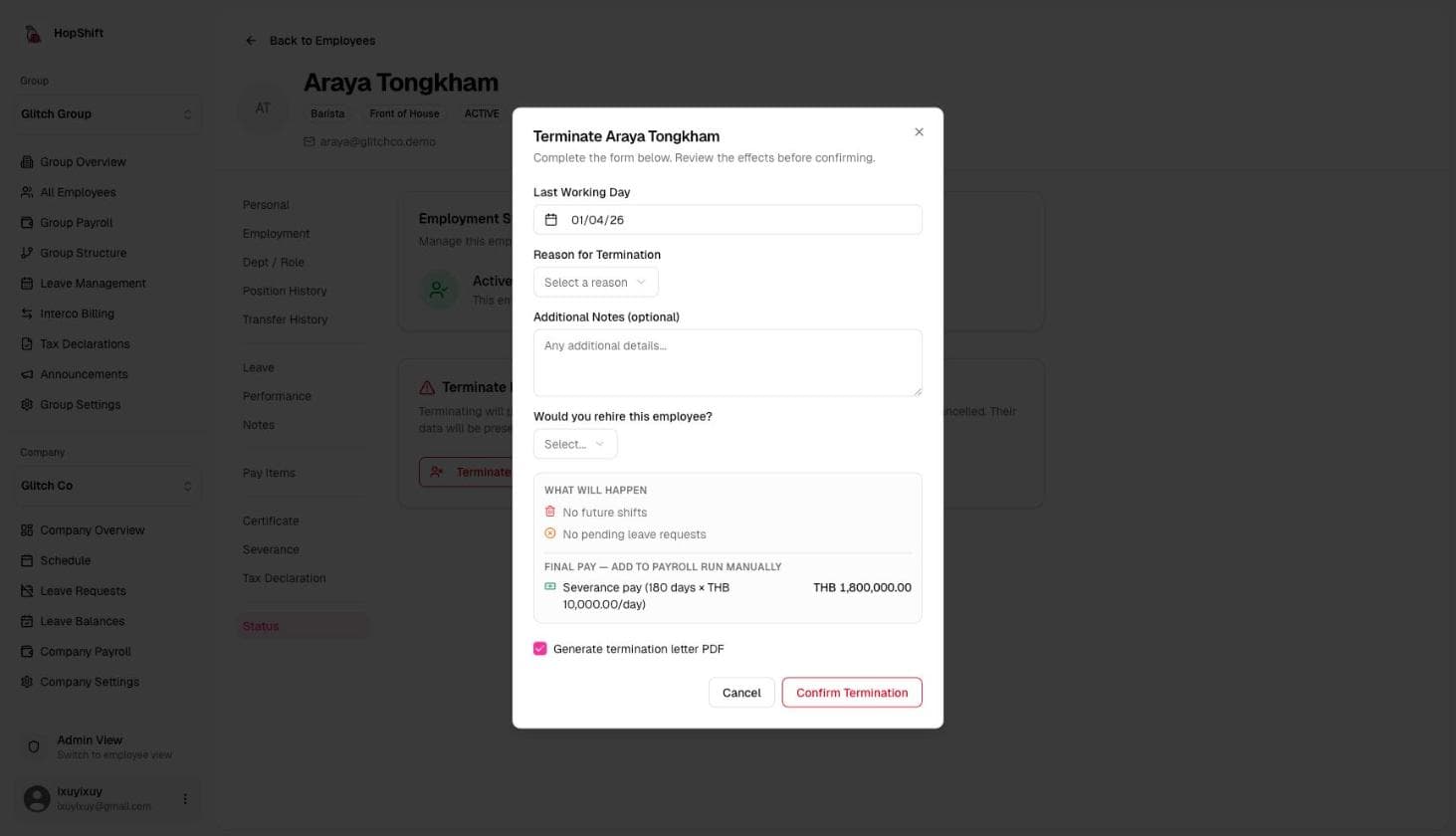
Below the fields, the dialog shows a live What will happen preview: how many future shifts will be deleted, how many pending leave requests will be rejected, how the annual leave allocation is prorated for the months worked, and whether an intercompany assignment will be deactivated.
It also shows a Final pay: add to payroll run manually section with the estimated leave encashment and severance pay based on the employee's salary. Note these figures for the final payroll run.
Click Confirm Termination.
If you pick a Last Working Day in the future, the button becomes Schedule Termination. The employee stays Active with full access until that date, and the page shows a "Termination scheduled" banner with Reschedule termination and Cancel scheduled termination actions.
Terminating is a status change with side effects: future shifts are deleted and pending leave requests are auto-rejected immediately. Reactivate Employee restores the status but does not restore deleted shifts or rejected requests.
What Happens After Termination
When you confirm a termination, Hopshift immediately:
- Sets the status to Terminated and records the last working day, reason and rehire answer
- Deletes all of the employee's future shifts
- Auto-rejects any pending leave requests
- Prorates the annual leave allocation to the months worked, as shown in the preview
- Ends any active intercompany assignment on the termination date
- Adds an event to the employee's Timeline
- Retains all historical records: past payslips, timesheets and leave history
Payroll runs include active employees, so the terminated employee will not appear in runs after their last working day.
After termination, the Termination page shows the Termination Details and a Download Termination Letter button if you asked for one.
To find terminated employees, set the Status filter on the Employees list to Terminated.
Final Payroll
If the employee's last day falls mid-cycle, their final pay must be prorated.
Running Final Pay
- Open the payroll run that covers the employee's last day (see Running Payroll).
- Hopshift automatically prorates their salary to cover only the days worked in the period.
- Verify the prorated amount and any outstanding overtime or deductions.
- Add the final pay items described below, then publish the run as normal.
Final pay is not added to payroll automatically. Note the leave encashment and severance figures shown in the termination dialog and add them to the final payroll run yourself.
Annual Leave Encashment
In Thailand, employees are legally entitled to payment for unused annual leave upon termination. The termination dialog shows the estimated encashment as unused days multiplied by the daily rate. Add that amount to the employee's final payslip as a one-off earning.
The daily rate used in the estimate is Monthly Salary / 30 days. Confirm this aligns with your employment contract terms before finalizing.
Thailand Severance Pay
Thai labor law (Labour Protection Act Section 118) mandates severance pay for employees dismissed without cause based on their length of service:
| Years of Service | Minimum Severance |
|---|---|
| 120 days to under 1 year | 30 days' wages |
| 1 year to under 3 years | 90 days' wages |
| 3 years to under 6 years | 180 days' wages |
| 6 years to under 10 years | 240 days' wages |
| 10 years to under 20 years | 300 days' wages |
| 20 years or more | 400 days' wages |
Severance does not apply to employees who resign voluntarily, are dismissed for cause (serious misconduct), or reach the end of a fixed-term contract.
Hopshift gives you two estimates: the Severance Calculator on the employee profile (under Pay & tax > Severance) works out years of service, tier, daily rate, severance days, amount and notice period; and the termination dialog shows a severance figure for the chosen last working day. Add the amount to the final payroll run as a one-off earning.
Severance pay is your responsibility under Thai law. The Severance Calculator and the termination dialog give an estimate; eligibility (resignation, misconduct, fixed-term end) is your call. Confirm the amount with your legal or HR team before processing.
Termination Records
All termination details are stored permanently in the employee's profile:
- Termination page (under Status): shows the Termination Details (date, reason, would rehire) and the termination letter download
- Timeline (under History): the event log, including the termination event
- Payroll history: all past payslips are retained and downloadable
- Leave history: full leave request history is preserved
To access a terminated employee's records:
- Go to Employees and set the status filter to Terminated.
- Click the employee's name.
- All profile pages remain accessible.
Rehiring a Terminated Employee
If a previously terminated employee returns to the company:
- Go to the employee's profile (use the Terminated status filter to find them).
- Click Rehire in the profile header.
- Enter the Rehire date. Choose whether to Reset probation and, if so, the Probation length (days).
- Click Rehire employee.
Hopshift creates a new employee record, copying personal details, pay and position from the terminated one, and opens it for you. Edit anything that has changed (position, salary, department) on the new record. Leave balances start fresh from the rehire date.
Rehiring creates a new employee record. The terminated record stays in the directory under the Terminated filter with its payslips and leave history intact. Seniority-based benefits (annual leave scaling, severance) start again from the rehire date; adjust the new record's position or leave allocation manually if your policy counts previous service.
Permissions
| Access level | What they can do |
|---|---|
| Group Admin / Admin | Terminate any employee in their company, view all termination records |
| Manager | Cannot terminate employees; can view status of their direct reports |
| Employee | Cannot terminate; cannot see termination records |
Related
- Employee Management: full employee profile management
- Payroll: running final payroll and payouts
- Compliance: Thailand labor law requirements