
Running Payroll Each Month
The monthly routine, step by step. Most of payroll fills itself in. This page covers the part a person still does.
For Fonsen the pay cycle runs from the 21st to the 20th, and staff are paid on the 28th. Your company's cycle and pay date are set in Payroll > Settings (Pay Cycle) and are shown per company on the Group Payroll summary.
Almost everything reaches payroll on its own: clock-ins come from the app, leave and overtime come from staff requests, and salary, meal allowance, tax and SSO are all calculated for you.
There is really only one thing to type each month: the variable pay amounts. Everything else on this page is checking, approving and clicking Publish.
The Five Steps
1. Open the month that just closed
Go to Group Payroll. It opens on the previous month, which is the one you are paying.
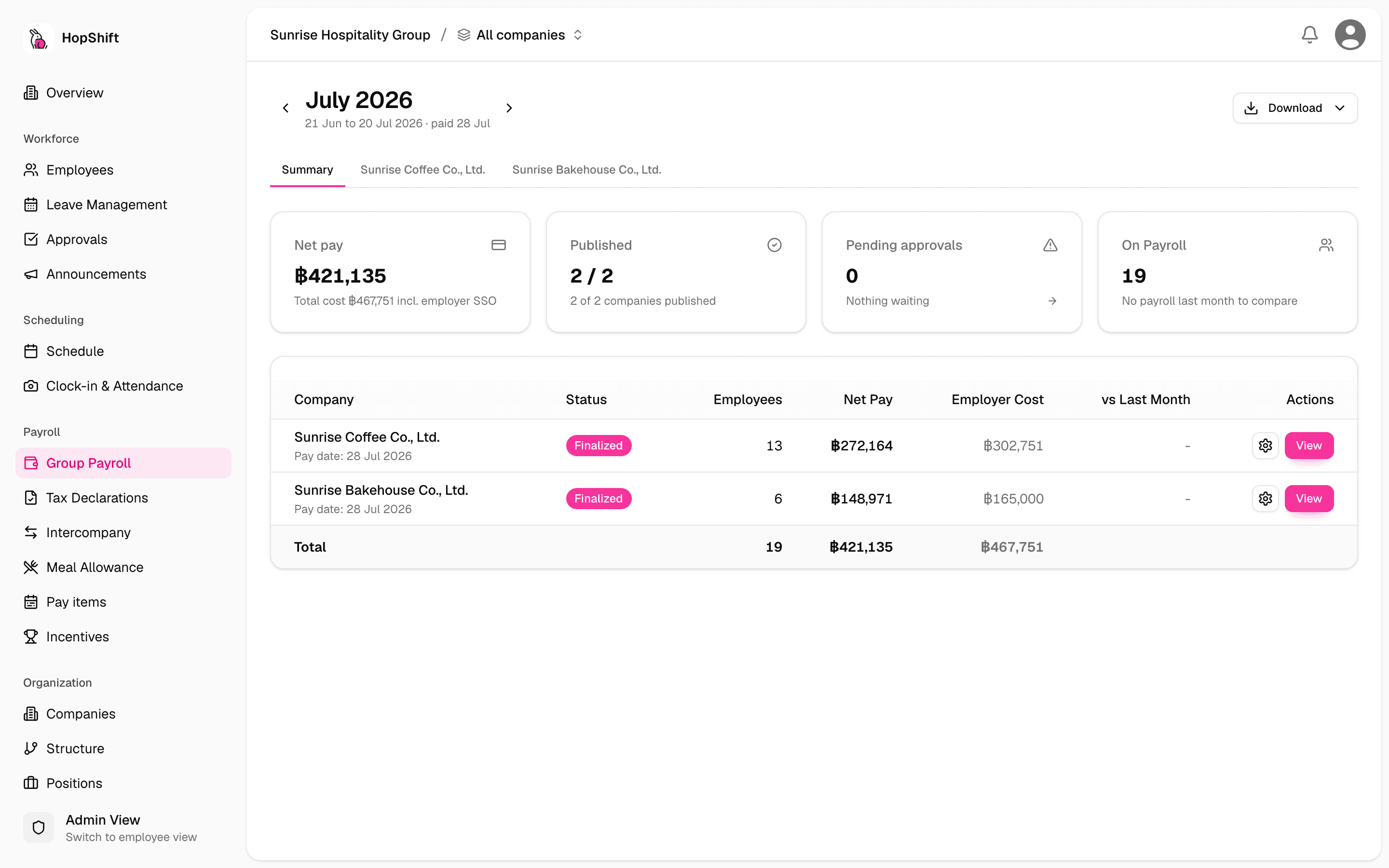
Draft payslips are usually already waiting for you, created automatically overnight. If any company is missing one, a Start payroll button appears at the top right.
While the month is still open, figures carry a Projected badge and a "Period still accruing" note: they keep filling up from clocks and approvals every day and only become final when you publish.
There is no "recalculate" button and you never need one. Payslips update themselves whenever anything changes: an approval, an upload, or an edit.
2. Clear the approvals
Each company shows an amber banner: Pending approvals to clear before publishing. It lists only what is still waiting, and the links take you straight there.
Work through them in the order shown: clock records, corrections, overtime, then leave. Each row shows how much money it affects, and leave and overtime can be approved right there without leaving the page.
Anything you leave unapproved simply does not get paid. The banner warns you at publishing time but does not stop you.
3. Enter the pay amounts
This is the real work of the month.
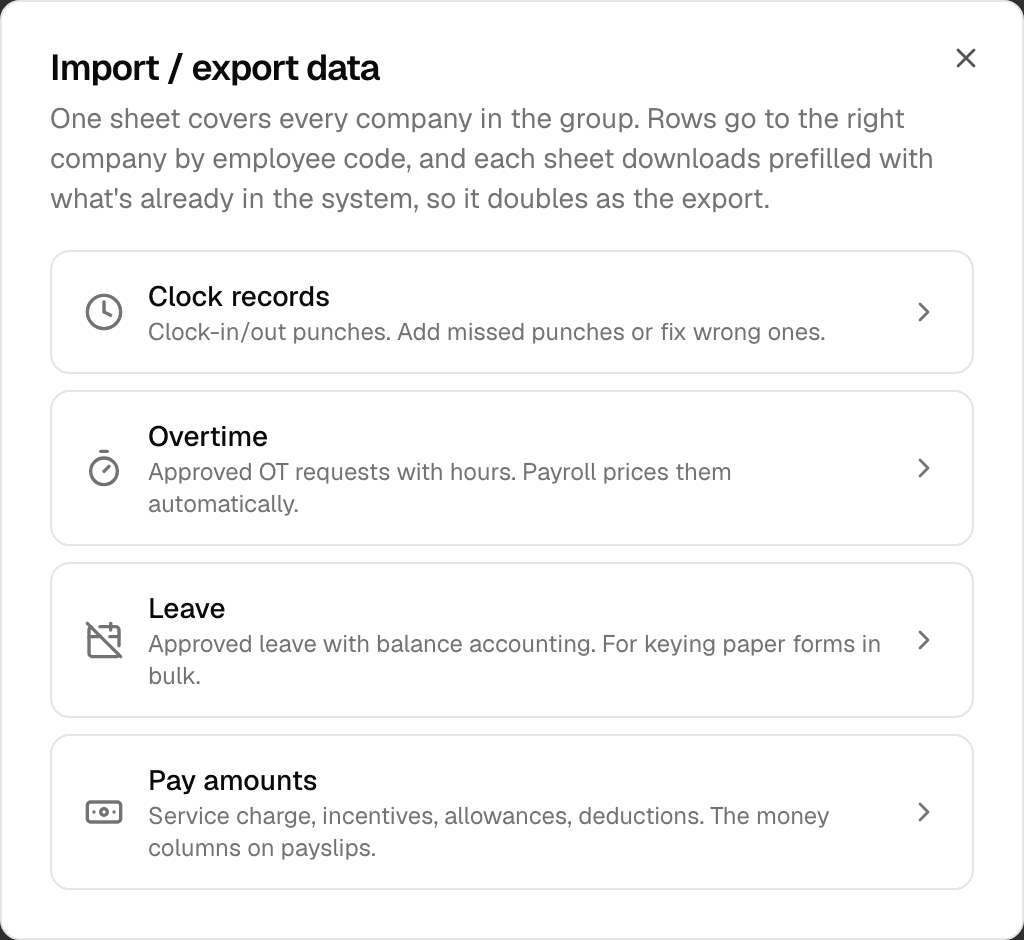
- Click Import / export data at the top right
- Choose Pay amounts
- Click Download Template. One sheet covers every company, already filled in with what is on record
- Fill in this month's figures, save the file
- Come back to the same place and click Upload File
- Read the review screen: it lists every change the file would make, and every row it could not accept, before anything is written
- Click Apply N Changes (the button shows how many changes it will make)
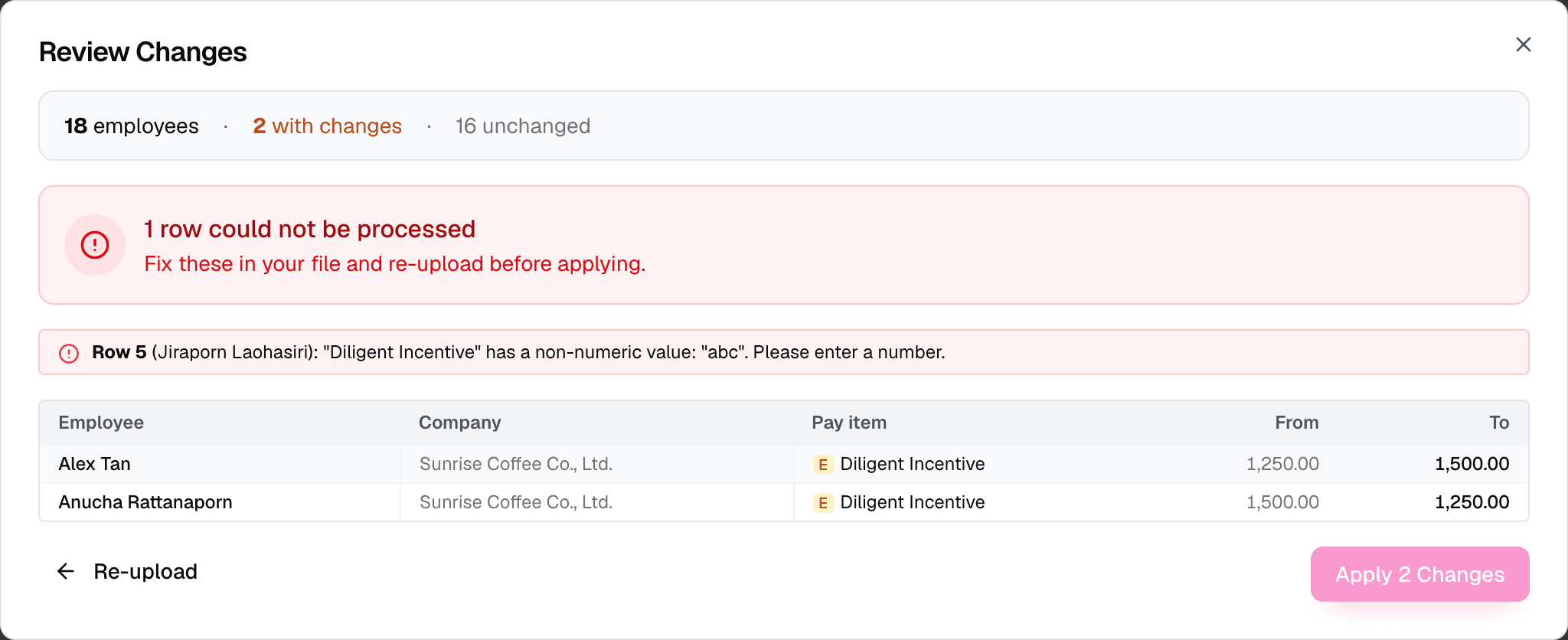
The whole file is checked before any of it is applied. If even one row has a problem (an unknown employee code, text in a number cell, a value in a locked column), nothing is written; fix the rows it names and upload again.
Once you apply, the amounts are saved within seconds and the payslips recalculate on the server, tax and SSO included. The dialog shows the steps, a progress bar and a rough time left; you can close the window and the work carries on. With a couple of hundred people it takes a minute or two.
Which columns to fill in:
| Pay item | Fill in every month? |
|---|---|
| Diligent Incentive | Yes |
| Incentive / Service Charge | Yes |
| Part-Time | Yes |
| Student Loan Fund | Yes |
| Phone, Position, Transport, Insurance, Visa | No, these stay the same |
Bonus, Uniform and other one-off items are only filled in for the month they happen.
Locked columns. Some columns come out of the template greyed and protected, and Excel will not let you type in them. Those are pay items marked Lock value in payroll on the Pay items page, typically Position Allowance and the other standing amounts. If a locked cell does get changed (for example in a copy of the sheet), the upload is refused and the message names the cell and the amount to restore. To change one of these amounts for real, open the employee's Compensation page. Base salary is always locked, and is changed the same way (see Base salary).
Leaving a cell empty does not mean "pay nothing this month." It means the standing amount for that person is used instead. To pay nothing, enter 0. This is the opposite of the Pay items page, where an empty month cell pays nothing.
4. Check the numbers
Open each company tab. Each tab has a Payslips / Attendance toggle: Payslips is the list you check here; Attendance is where the period's clock records, overtime and leave are reviewed. Look down the payslip list. The vs Last Month column on the Summary tab is the quickest way to spot a figure typed into the wrong row.
Meal allowance needs no attention. It is worked out from clock-ins and shifts, and appears by itself.
5. Publish, one company at a time
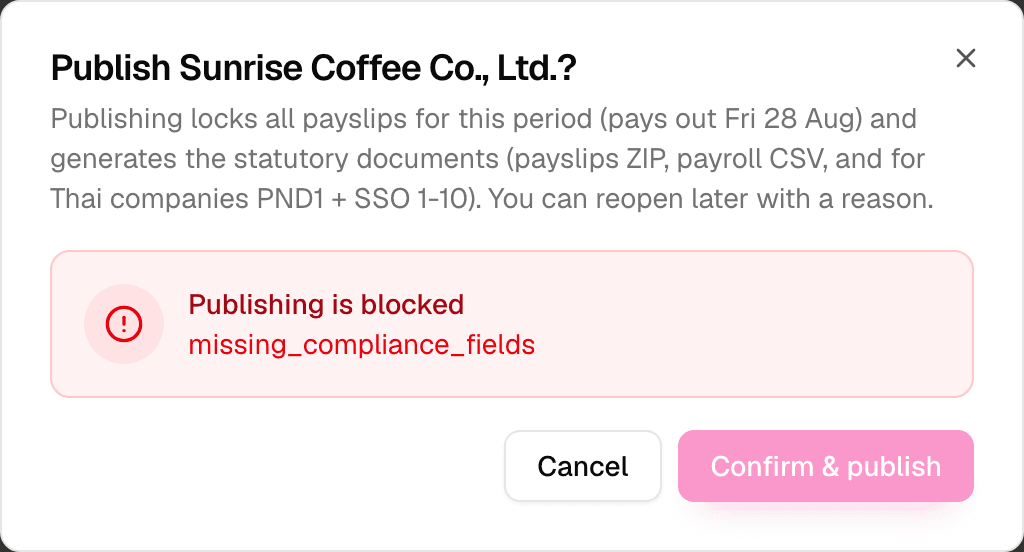
On each company tab, click Publish…, then Confirm & publish. Repeat for each company.
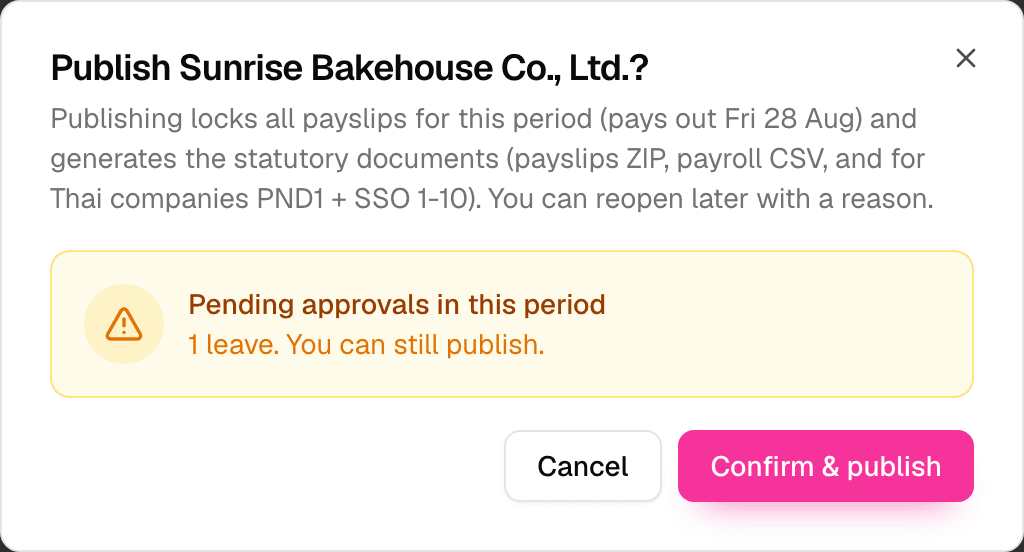
Publishing is per company. There is no publish-all button because each company is a separate PND1 and SSO filing.
Publishing locks the payslips and produces the government documents automatically: PND1, SSO 1-10, the SSO e-Service upload file, the payroll CSV and everyone's payslip PDFs. You will find them under the payslip list. Once at least one company is finalized, a Download menu appears on the Summary tab offering Consolidated Excel (.xlsx), PND1 & SSO Files (ZIP) and All Documents (ZIP).
Publishing runs on the server, not in your browser. After you confirm, the company shows Publishing… with a spinner. You can move to the next company, or close the tab entirely; a dropped connection changes nothing. Payslips cannot be edited while a company is publishing. If document generation fails, the company drops back to draft straight away with a red banner titled Publish did not go through saying what went wrong; fix it and publish again. A publish that was interrupted (for example the server timed out mid-way) is picked up again automatically for up to two hours before it is handed back to draft.
Undoing a publish
Published by mistake? On the company tab open the … menu and choose Reopen run…; you must give a reason, then click Reopen to draft. The payslips go back to draft and you publish again once they are fixed.
The same menu has Discard draft… for a draft you want to throw away entirely (not available while the period is still accruing).
What You Never Have to Type
| Where it comes from | |
|---|---|
| Clock-ins and clock-outs | Staff clocking in the app |
| Leave requests | Staff request, you approve |
| Overtime requests | Staff request, you approve |
| Basic salary | The employee's record |
| Meal allowance | Calculated from shifts and clock-ins |
| Overtime pay | Calculated from approved hours |
| Tax and SSO | Calculated, and filed when you publish |
Fixing Something That Is Wrong
All of this is on the Approvals page. You do not need to go anywhere else.
A clock-in at the wrong time
Open the Clock-in tab and click Edit on the record. You can change the time or the type.
You must give a reason, because changing a clock-in changes hours worked. The reason is saved with the record so anyone can see later why it changed, and payslips update straight away.
You can edit any record, not only the ones waiting for approval.
Overtime claimed for too many hours
Open the OT tab. When you approve, there is an Hours to approve box. Approve 1.5 of the 2 hours claimed and the payslip uses 1.5.
You do not need to reject it and start again.
A correction where the time is slightly wrong
When you approve a correction there is a Time to record box, already filled in with what the staff member asked for. Change it if you know the real time. Both times are kept in the record.
Corrections are raised by staff, not by you. A staff member reports a wrong clock-in from the app. When you need to change a record yourself, edit it directly with a reason, which does exactly the same thing.
What Stops You Publishing
Only five things, and each one names exactly who or what to fix:
- An employee missing their National ID or gender
- The company's PND1 Tax ID not set
- The company's SSO registration number not set
- Anyone whose net pay is below zero
- Payslips still recalculating after an upload: wait a minute and try again
Nothing else blocks you. Pending approvals give a warning, not a stop.
A forgotten clock-out means that day pays no meal allowance. This is the agreed rule, not a fault. Encourage staff to report a missed clock-out from the app so it can be corrected before payday.