
Pay Items
Every earning and deduction on top of salary, set up once for the whole group. Where to create one, lock one, and see who gets what each month.
Pay items are the amounts on a payslip other than basic salary: allowances and incentives on the earnings side, and things like uniform recovery or a loan repayment on the deductions side. They are managed for the whole group in one place: Payroll > Pay items in the group sidebar (/your-group/pay-items; the company URL under Payroll redirects here).
Pay items are group-wide by name. Creating "Housing Allowance" creates it in every company at once, and a setting you change on it applies in every company. This is deliberate: one allowance under two spellings in two companies is how totals go wrong.
The overview
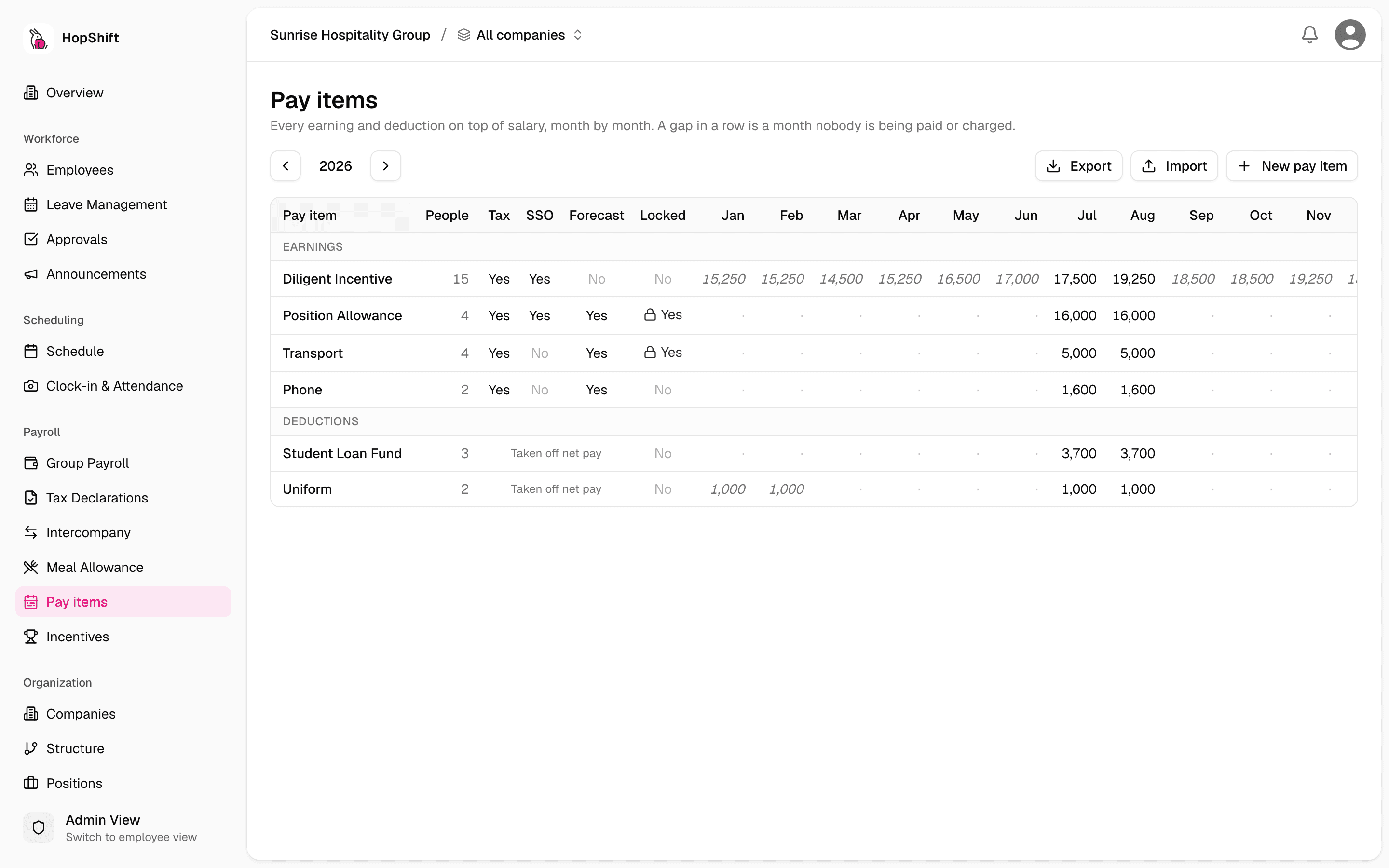
The page opens on a table of every active pay item, earnings first and then deductions. For each item you see:
| Column | Meaning |
|---|---|
| People | How many employees carry it this year |
| Tax / SSO / Forecast | The tax settings (earnings only; deductions are simply taken off net pay) |
| Locked | Whether Lock value in payroll is on |
| Jan … Dec | The total paid (or scheduled) that month across the group. Italic means scheduled but not yet run |
| Year | The total for the year |
Use the arrows next to the year to look at another year. Click a row to open that item.
One item, month by month
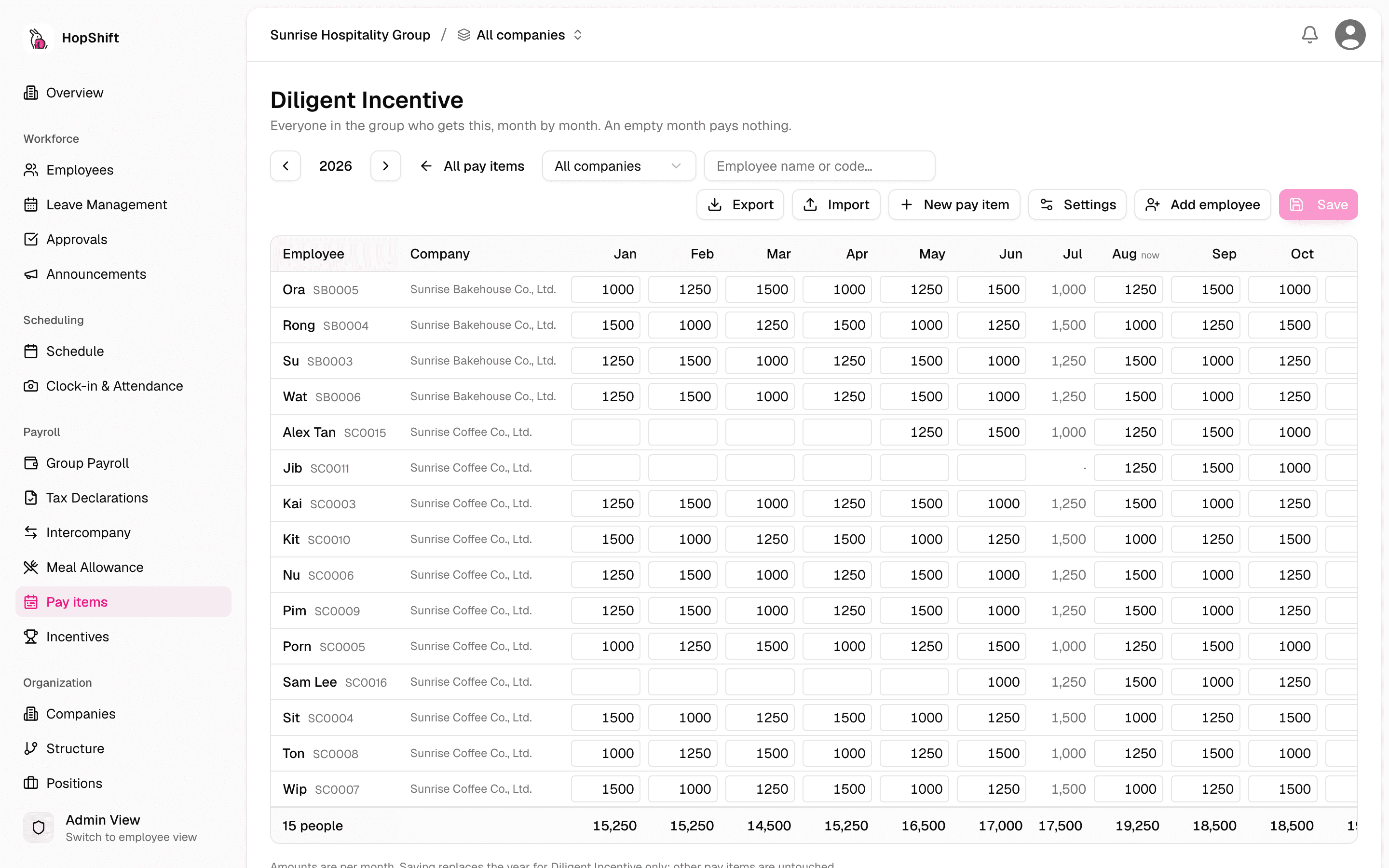
Opening an item shows every employee in the group who gets it, one row each, with twelve month cells. Type an amount into a cell and click Save; that is what the payslip for that month will pay (or deduct).
An empty cell pays nothing that month. On the monthly payroll import template the rule is the reverse: an empty cell keeps the standing amount.
Months whose payroll is already published are shown but cannot be changed.
Filter by company or search by name or code to find someone; use Add employee to give the item to someone who does not have it yet.
The address bar follows what you have open (?item=Position%20Allowance), so you can send a colleague a link straight to that item.
Excel round trip
For a bulk change, click Export to download the year's sheet, one row per employee and pay item with the twelve months already filled in with what is on record. Edit it and click Import to upload it back. The review screen lists every change before it is applied; the whole sheet is checked first and nothing is written if any row has a problem. Published months are ignored on upload; locked items come out as grey rows for reference, and any change to them is rejected.
Creating a pay item
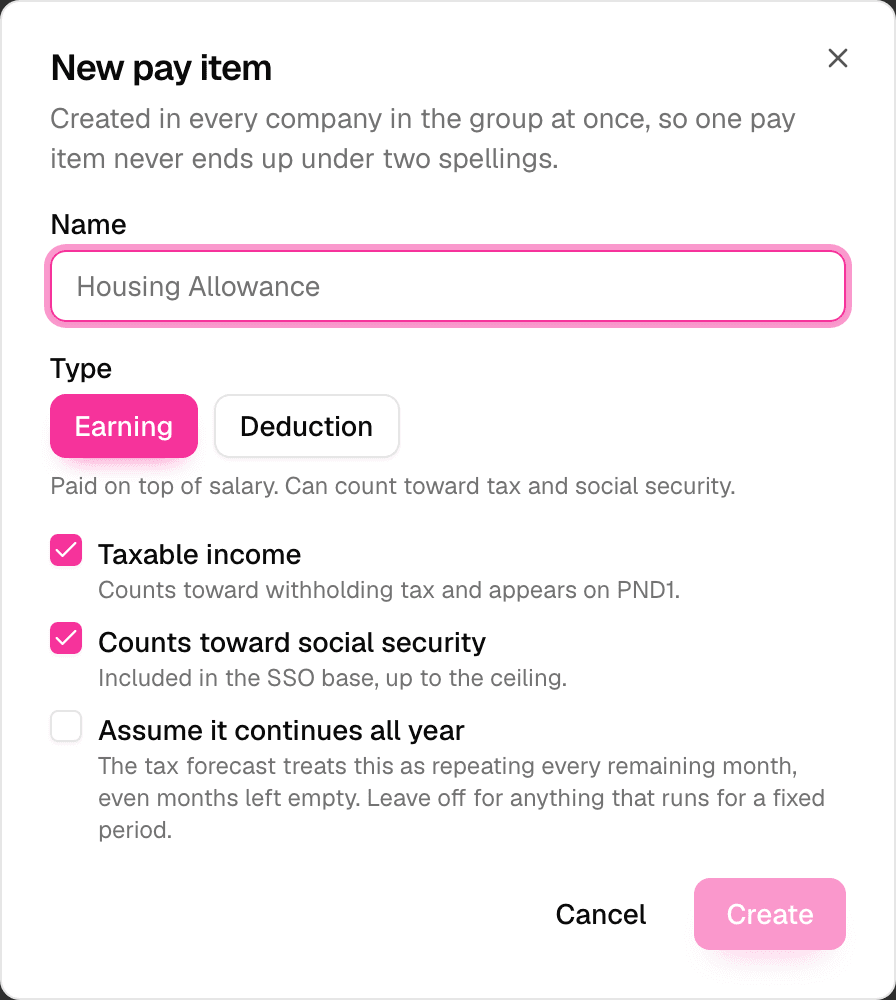
Click New pay item, give it a name, and choose Earning or Deduction.
For an earning you also choose:
- Taxable income: counts toward withholding tax and appears on PND1
- Counts toward social security: included in the SSO base, up to the ceiling
- Assume it continues all year: the tax forecast treats it as repeating every remaining month, even months left empty. Leave this off for anything that runs for a fixed period, or the forecast over-withholds
Deductions have none of these: they are taken off net pay and never enter the tax base. Amounts for a deduction are entered as positive numbers.
An earning and a deduction cannot share a name; the page identifies an item by its name.
Settings and the lock
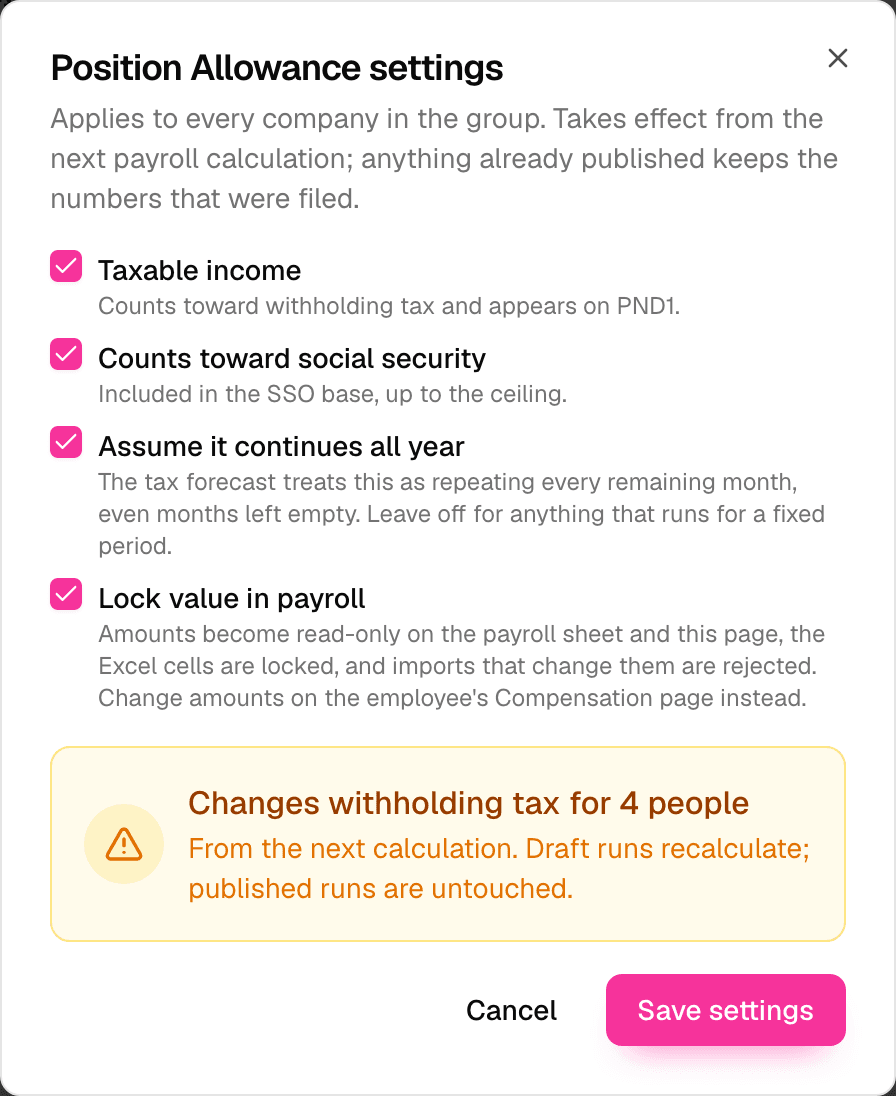
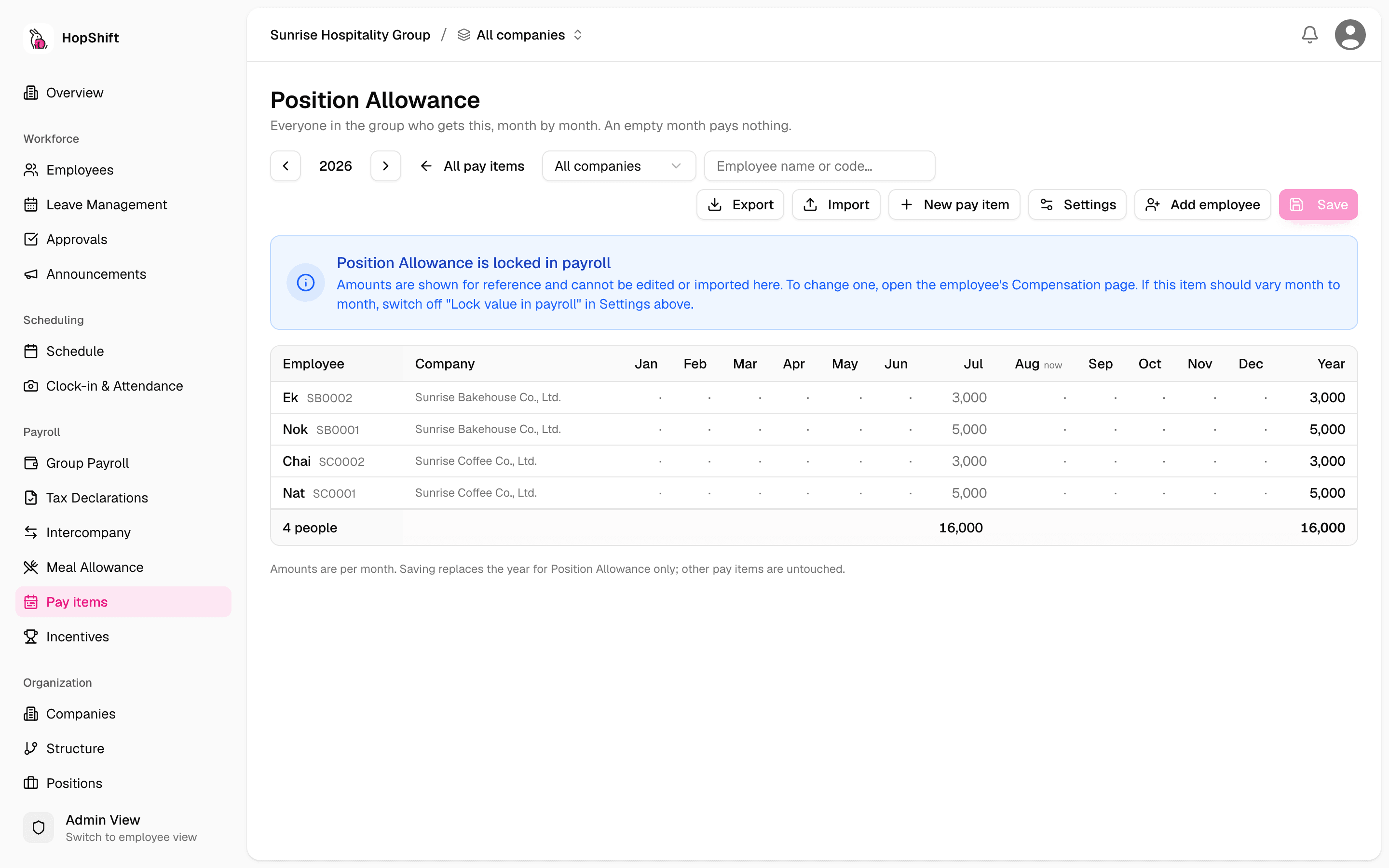
Open an item and click Settings to change the flags above for every company at once. Changes take effect from the next payroll calculation; anything already published keeps the numbers that were filed.
Lock value in payroll is the setting HR asked for to stop accidental edits. When it is on for a pay item:
- Its column on the payroll sheet is read-only, and so is its month grid on this page
- Its cells in the payroll import template are protected in Excel, and its rows in the Pay items export are greyed
- An upload that changes one of its cells is refused, and the message names the cell and the amount to restore
The amount can then only be changed on the employee's Compensation page. Use it for standing amounts such as Position Allowance, Phone or Transport that should not move month to month. Base salary is always locked in exactly this way (see Base salary).
Locking does not change any amount. It only decides where an amount can be edited. Nothing already scheduled or paid is affected.
Running Payroll Each Month
The monthly routine, step by step. Most of payroll fills itself in. This page covers the part a person still does.
Meal Allowance
Set one meal allowance policy for the group, override it per company or per employee, choose who's enrolled, and let payroll auto-pay the right amount per shift.