
Travel Allowance
Pay staff, such as technicians, a rate per kilometre on approved travel. Set the rate, enrol who is paid, record their km, approve, and payroll adds a Travel Allowance line.
Travel Allowance pays enrolled staff a rate for every approved kilometre they travel for work. It is built for staff who drive between sites, such as technicians.
Nothing is paid until two things are true: a rate is set, and the person is enrolled. Everyone else in the group is unaffected.
How it works at a glance
| Step | Who | Where |
|---|---|---|
| 1. Set the rate per km | HR admin | Travel Allowance > Settings |
| 2. Enrol the staff who are paid | HR admin | Travel Allowance > Staff |
| 3. Record the km | HR admin (later: automatic) | Travel Allowance > Logs |
| 4. Approve the km | HR admin | Travel Allowance > Logs |
| 5. Payslip updates by itself | Payroll | Travel Allowance line on the payslip |
Open it from the sidebar: Payroll > Travel Allowance. You need the Manage meal allowance access permission, which also covers travel allowance. Group admins have it.
Step 1: Set the rate
Go to the Settings tab.
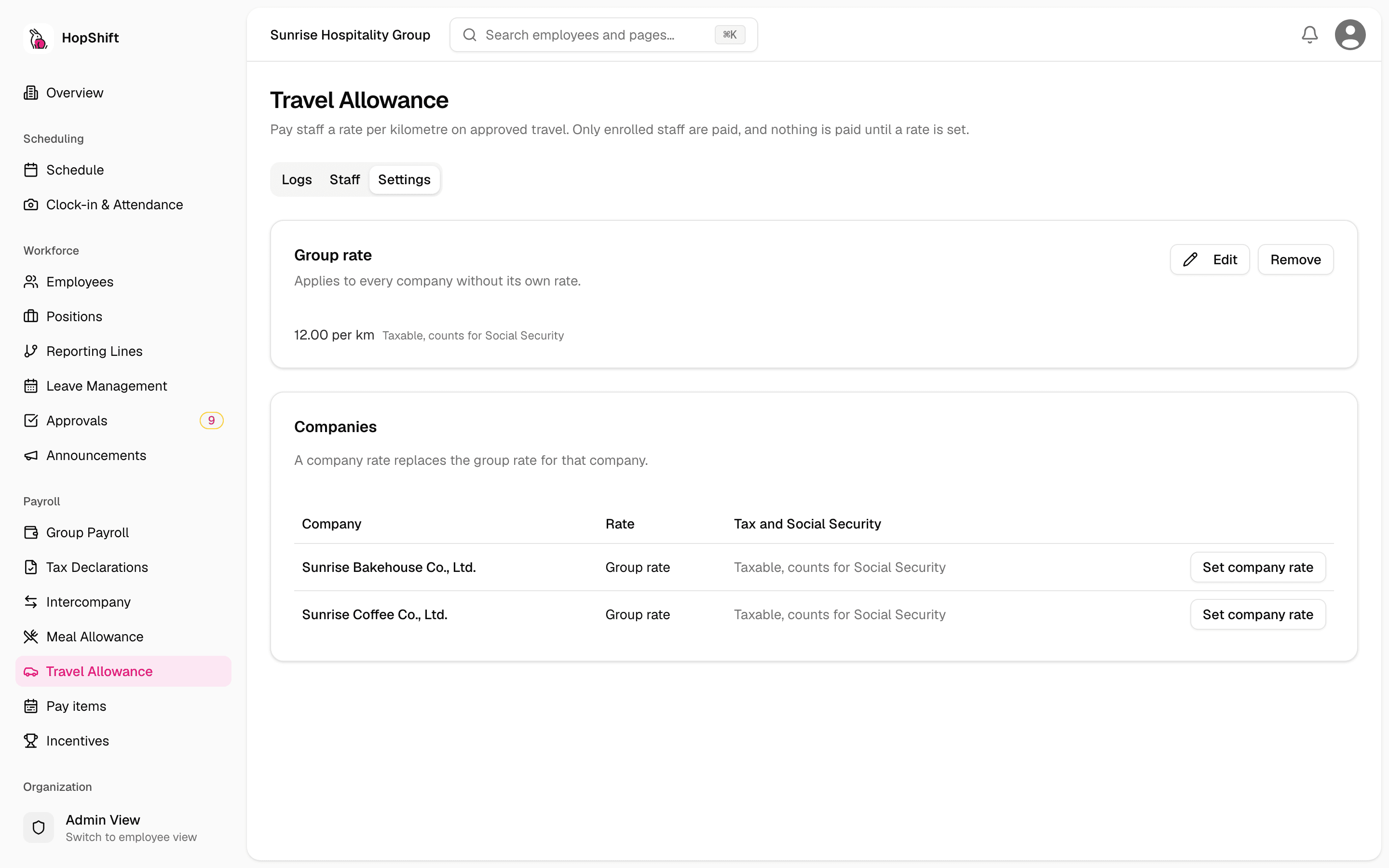
- Group rate: click Set rate and enter the amount per km (for example
12). It applies to every company in the group. - Company rate (optional): click Set company rate next to a company to give it a different rate. Click Use group rate to go back.
Each rate has two switches:
| Switch | Meaning |
|---|---|
| Taxable income | The travel amount counts toward income for withholding tax (PND1). |
| Counts for Social Security | The travel amount counts toward the SSO wage. |
Both are on by default, which matches the Transportation pay item in EzyHR. Changing a rate updates open draft payslips automatically.
Step 2: Enrol staff
Go to the Staff tab, search for the person and switch on Enrolled.
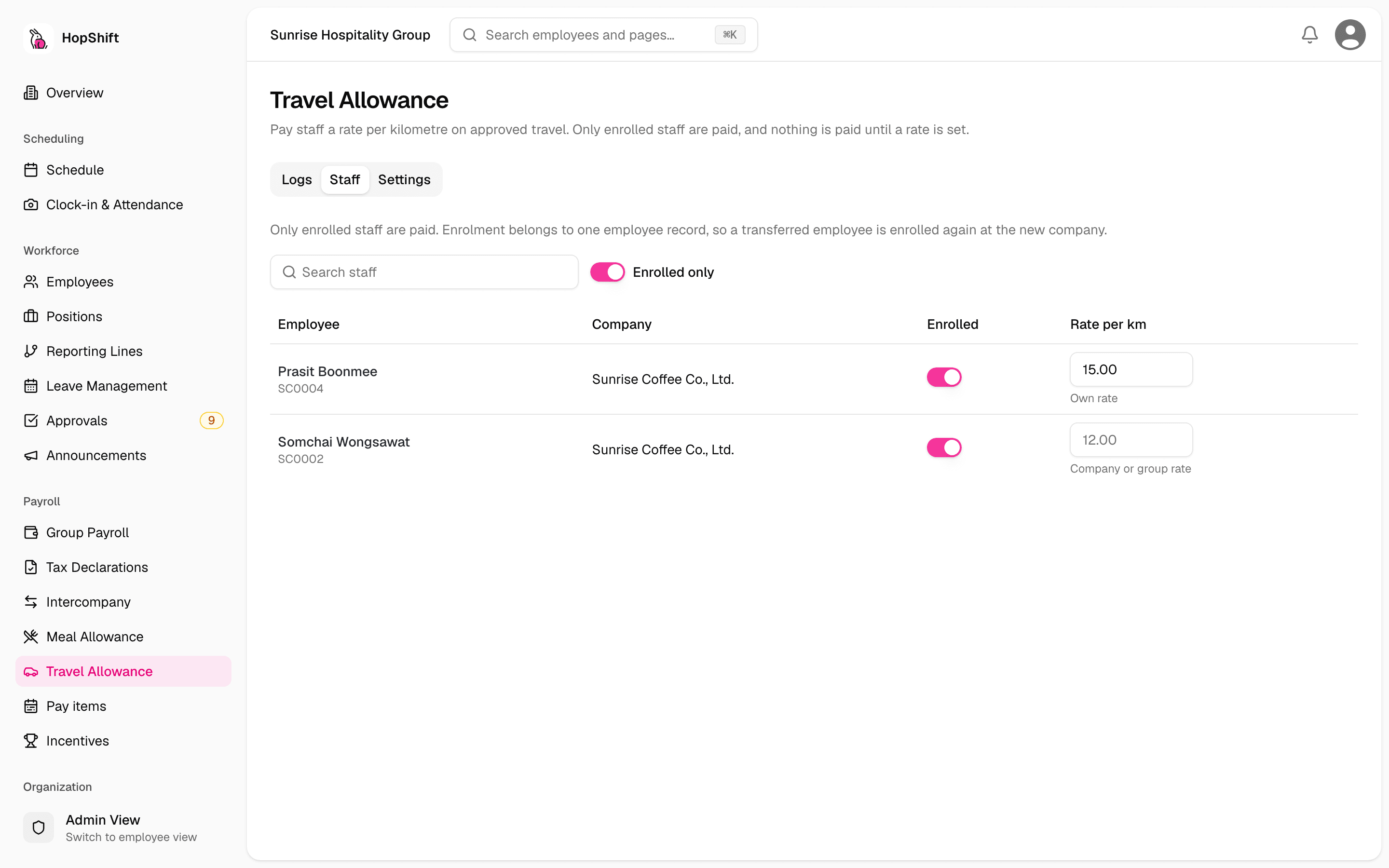
- Leave Rate per km empty to use the company or group rate.
- Enter an amount to give that one person their own rate.
- Enrolment belongs to one employee record. If someone transfers to another company, enrol them again at the new company.
- Staff who have left stay listed as Not active, so you can still unenrol them.
Step 3: Record the km
Go to the Logs tab and choose the company and payroll period (for example 21 Oct to 20 Nov). The page shows Approved in this payroll period, which matches what the payslip pays.
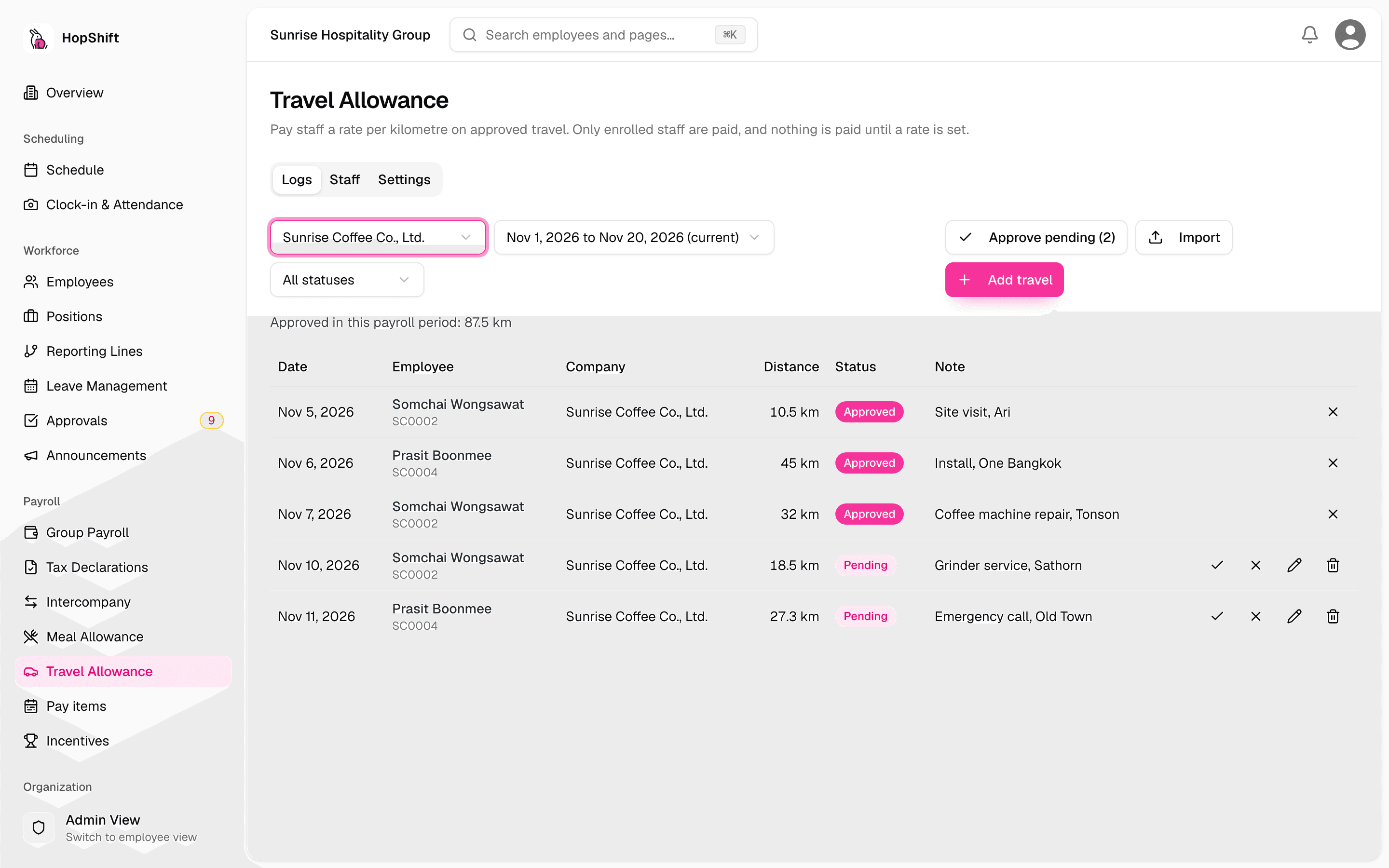
Travel can only be added for enrolled staff. Add it in either of two ways:
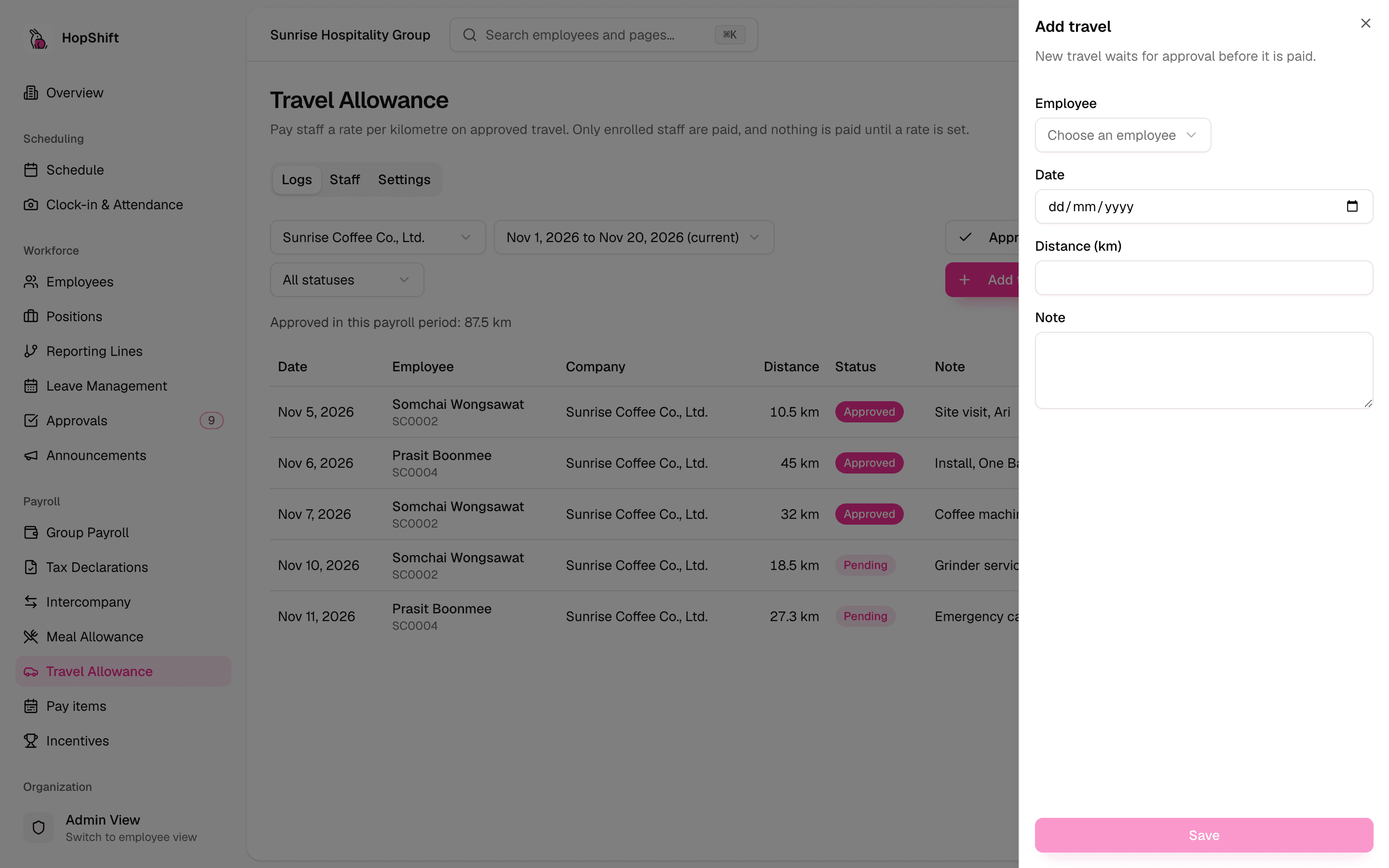
One trip at a time. Click Add travel, choose the employee, the date, the distance in km and an optional note.
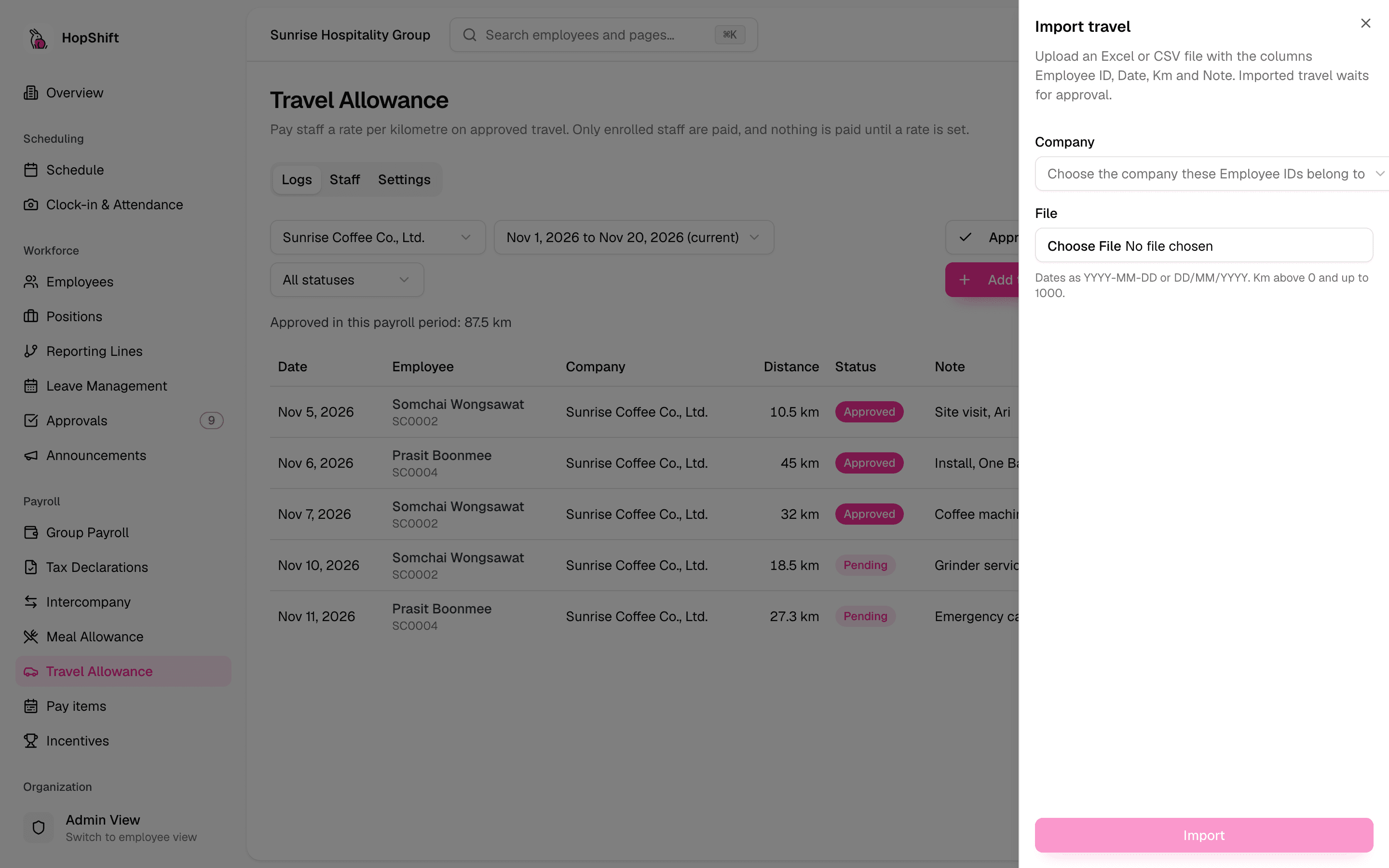
Many trips from a file. Click Import and upload an Excel (.xlsx) or CSV file with these columns:
| Employee ID | Date | Km | Note |
|---|---|---|---|
| SCC0200 | 05/11/2026 | 42.5 | Site visit, Tonson |
| SCC0200 | 06/11/2026 | 18 |
- Choose the company the Employee IDs belong to.
- Dates can be
DD/MM/YYYYorYYYY-MM-DD. - Km must be above 0 and up to 1000.
- If any row has a problem, nothing is imported and the page lists each row number to fix.
Several trips on the same day are fine; each is its own log and the payslip pays their total.
Step 4: Approve
New and imported travel starts as Pending and is not paid until approved.
- Click Approve on a row, or Approve pending to approve every pending row shown for the chosen company and period.
- Click Reject to refuse a trip (you can add a reason). Rejected travel is not paid.
- Pending travel can be edited or deleted. Approved travel cannot be deleted; reject it instead, and the payslip is recalculated.
Step 5: The payslip
After approval, Hopshift recalculates the person's draft payslip by itself. The payslip gets a Travel Allowance line:
approved km in the payroll period × rate per km
For example, 120 approved km at 12 per km pays 1,440.00. The line is included in gross pay and, depending on the switches in Step 1, in taxable income and the SSO wage. It appears on the payslip PDF, the payroll screens and the payroll export.
A Travel Allowance line is calculated by the system. It is separate from any fixed Transportation pay item, and both are paid if a person has both.
Rules that protect payroll
| Situation | What happens |
|---|---|
| Date is in a payroll period that is already published | Refused. Add the missing km in the current open period, with a note. |
| Same employee, date and km already logged | Refused in an import. When adding one trip, you are asked Add anyway? |
| Someone is unenrolled after their travel was added | Their travel is not paid while they are unenrolled. The page warns you when you approve it. |
| Two payroll runs cover the same date | The km are paid once, by the run created first. |
| No rate set | Nothing is paid. |
Where the km come from
| Source | Status |
|---|---|
| Entered or imported by HR on the Logs tab | Available now |
| Mileage provider (automatic daily import) | Planned. Imported km will arrive as Pending for approval. |
| Phone location tracking in the employee app | Not available |
Hopshift does not track anyone's location for travel allowance. Clock-in and clock-out locations are not used to work out kilometres.